What this guide covers
Cashtaq can import transaction history exported from spreadsheets and other finance apps. The importer analyzes your file structure and maps columns automatically.
Supported files
- Excel files (
.xlsx) exported from other apps or your own spreadsheet - CSV files with a header row
Include as much history as you want. Duplicates already in your ledger are skipped automatically.
Step 1: Export from your old tool
In your spreadsheet or previous app, export your transactions to Excel or CSV. Keep one row per transaction with columns for date, amount, category or description, and account if you track more than one.
Step 2: Start the import
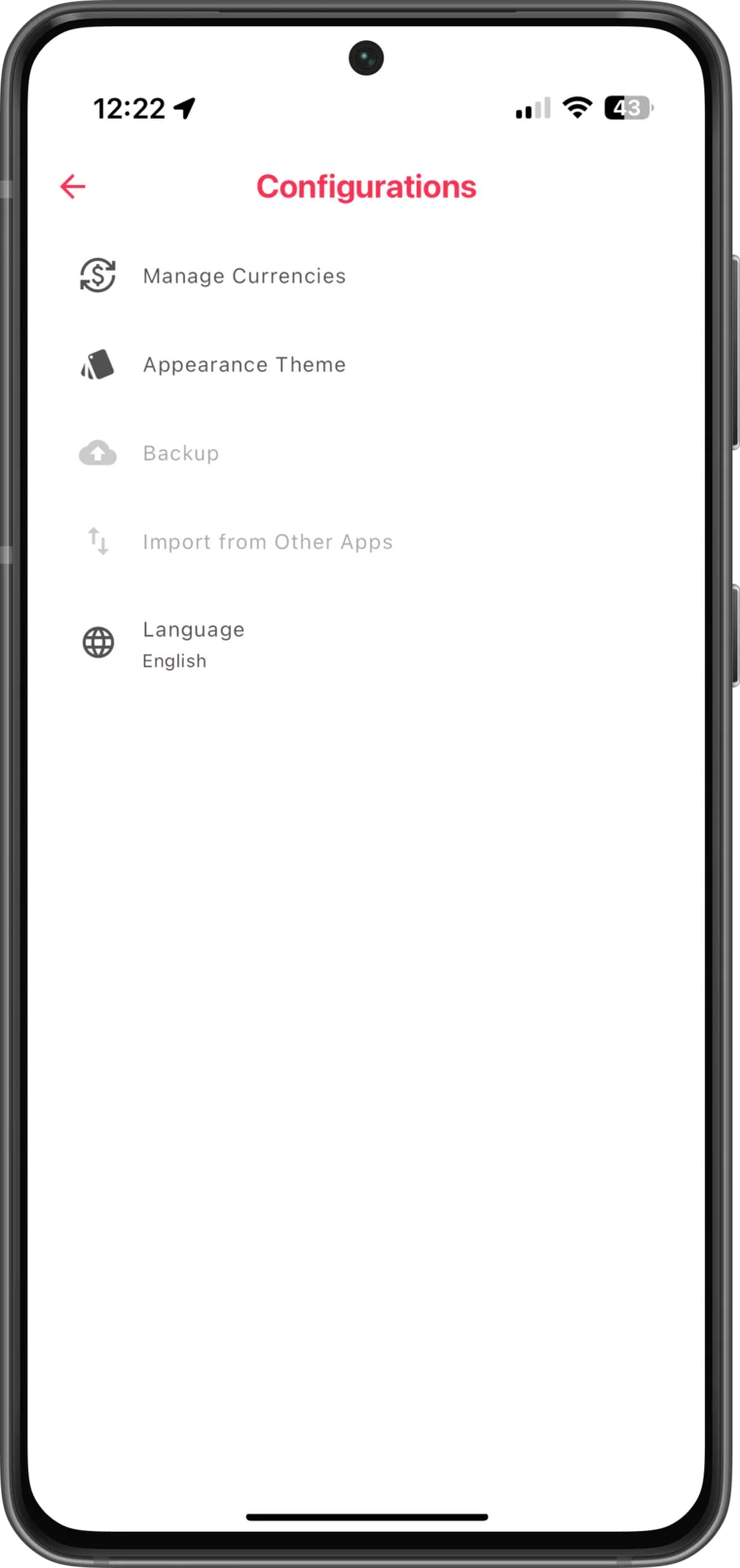
- Open Cashtaq and go to the import option: "Import from Other Apps".
- Tap "Select Excel File" and pick your export.
- Cashtaq examines the file structure and maps columns to the right fields automatically.
Step 3: Review and confirm
Check the mapping and the detected entries on the confirmation screen, then tap "Confirm and Import Data". A progress indicator shows imported entries as they are saved, including how many duplicates were skipped.
Step 4: Verify the result
When the import completes, spot-check a few transactions: open an account, search for an old entry, and confirm balances look right. Adjust categories afterwards if the mapping needs a tweak.
Tips
- Import before you start logging new transactions so duplicates are easier to spot.
- If your file has multiple sheets or accounts, import them one at a time.
- Take a backup after a successful import so the migrated history is protected.