Why backups matter
Your transaction history is the whole point of tracking. Cashtaq stores data encrypted on your device, and backups protect it if your phone is lost, broken, or replaced.
Backup destinations
- Cloud backup: encrypted and stored with your Cashtaq account, ready to restore on any signed-in device.
- Google Drive: keeps a copy in your own Drive storage.
- iCloud: the same for Apple devices.
Backups are compressed and AES-encrypted before they leave your phone. Nobody can read them without your key.
Turn on automatic backups
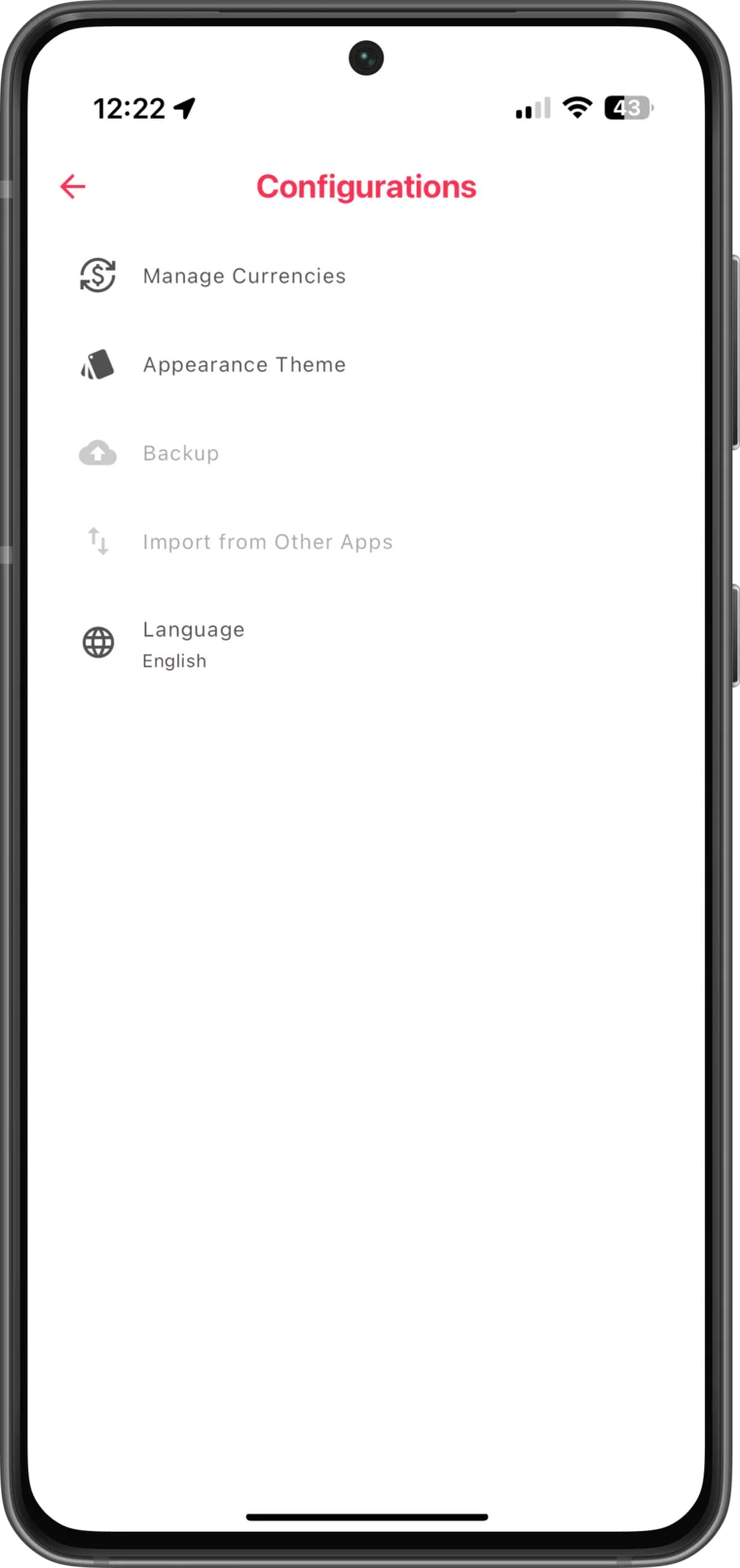
- Open the backup screen from Settings or the More tab.
- Enable "Automatic Backup".
- Pick a frequency: hourly, every 6 or 12 hours, daily, weekly, or monthly.
- For daily and longer schedules, choose a backup time.
Cashtaq runs the backup in the background on schedule and can remind you with a notification when it finishes or fails.
Create a manual backup
On the backup screen, tap "Backup Now". The latest backup replaces the previous one, so there is always exactly one current copy per destination.
Restore on a new device
- Sign in on the new device.
- Open the backup screen.
- Choose "Restore" and confirm. Cashtaq imports the encrypted backup and reloads your ledger.
Tips
- Use daily backups if you log transactions every day; weekly is fine for lighter use.
- Create a manual backup before importing data or switching phones.
- If you enable the app lock, restoring on a new device will prompt you to set up your PIN again.